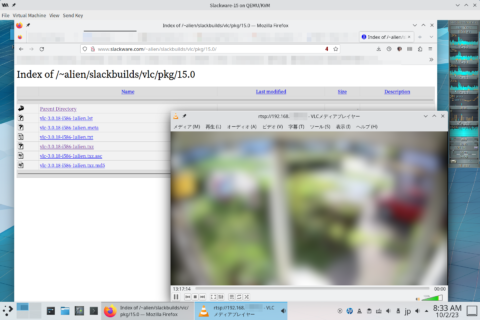
The following article is outdated. For the Raspberry Pi OS only, you can use VLC to watch RTSP as of 3 November 2023.
Original Article follows;
For Raspberry Pis, there are many outdated or sometimes harmful guides to watching video streams (RTSP) generated by webcams. The biggest issue obstructing the approach is that Debian removed RTSP capability from the VLC media player. People who want to simply watch RTSP on the Raspberry Pi are straying.
The goal of this article is to run ffplay on the Raspberry Pi OS automatically.
Disclaimer
The first purpose of this article is to record what I did. However, I am happy if this will be helpful to someone, no matter how much or little. I would like to state this article is based on GPLv3. No warranty at all.
Prior Information
- The information in this article is tested on Raspberry Pi 3 Model B (RPi3) and Raspberry Pi 3 Model B+ (RPi3+) both of them have 1GB RAM. Raspberry Pi 4 Model B is not tested but may work as well.
- URL to webcam is in the form of “rtsp://user_id:password@ipaddress/designated_string”
- Used OS is Raspberry Pi OS bullseye. The next generation, bookworm, will be released soon. This article will or will not be updated after bookworm release.
Raspberry Pi OS installation
Details of the OS installation are omitted in this article because there are many guides, including official and unofficial ones. It is lucky if you find one that suits to you. The installation is not difficult, so you can manage to install it even if the guide you found is not friendly.
The recommendable points are as follows:
- Install Raspberry Pi OS (64bit) full version, not the LITE version.
- Enable auto-login (just according to the default).
- Disable screen blanking.
- Enable the ssh server (sshd).
The following section assumes the WiFi setup is finished and that all packages have been updated.
Recommended Option: Zram
This is not a must, but I strongly recommend installing ZRAM. Many distros enable ZRAM on their default installation today, but Raspberry Pi OS bullseye doesn’t.
Installation is not difficult. Just install zram-tools with an apt command like,
sudo apt install zram-toolsthen swap on the RAM with compression starts functioning. ZRAM has extremely high priority, so the bullseye default, swap-on-file, will never work again. Because the swap file remains just a huge, redundant file, you may want to remove it. It is removed as follows:
sudo systemctl stop dphys-swapfile
sudo systemctl disable dphys-swapfile
sudo rm -v /var/swap
Test ffplay
During the OS installation, you have a mouse, a keyboard, and a monitor connected to the RPi3(+). Keep them connected until the set-up finishes.
The program to view RTSP, ffplay, is included in the FFMPEG package that comes with the Raspberry Pi OS. Open a terminal and execute the next command as a user.
ffplay -fs -loglevel quiet rtsp://user_id:password@ip_address/designated_stringwhere use_id, password, ip_address, and designated_string are those of the corresponding webcam.
If you get a full-screen video stream, you are one step closer. If you can’t, I can just say “It depends.”
Type “q” to quit the video.
Next, create a shell script file as a user with your favorite editor. You can name it whatever you like. For simplicity, it is named “run_ffplay.sh” here. Inside, it is like,
#!/bin/sh
sleep 20
/usr/bin/ffplay -fs -loglevel quiet rtsp://user_id:password@ip_address/designated_string >/dev/null 2>&1 &
This script sleeps 20 seconds before the execution of ffplay. I don’t know if 20 seconds is optimum. Please trim it if you like.
You can place the script file wherever you want, but your home directory is safe. Then give it execute permission.
chmod a+x run_ffplay.shJust run the script to see if you get a full-screen video again.
./run_ffplay.shAgain, type “q” to quit.
Autostart
You need to create an autostart configuration file in the directory "~/.config/autostart/". By the default of bullseye installation, "~/.config" has been created then you will need,
mkdir ~/.config/autostartThen create a file named “ffplay.desktop” in the directory with your editor. The contents will like,
[Desktop Entry]
Type=Application
Name=ffplay
Exec=/THE/PATH/TO/run_ffplay.sh
I know I’m being nosy, but /THE/PATH/TO should be the path to run_ffplay.sh. All done; just cross-finger and sudo reboot; exit1 ; exit may be redundant..
If success, you can remove the mouse and the keyboard.
Shutdown
Unfortunately, there is no smart shutdown method provided without a keyboard and a mouse. Login to the box via ssh from another PC, then execute the command sudo poweroff2Or simply poweroff may work.. Installing an electrical switch on the GPIO and configuring it will be fun. LIRC will be a smarter alternative.
Conclusion
Since Debian removed RTSP capability from the VLC media player, many people are struggling. You can use ffplay of the FFMPEG package as an alternative.